
Find faster
Search open tabs by title, URL, or domain instead of scanning the tab strip.
Live tab preview for Chrome
Search or point at an open tab to preview the live page. Click to switch or move away to snap back.
No account · No backend · No host permissions
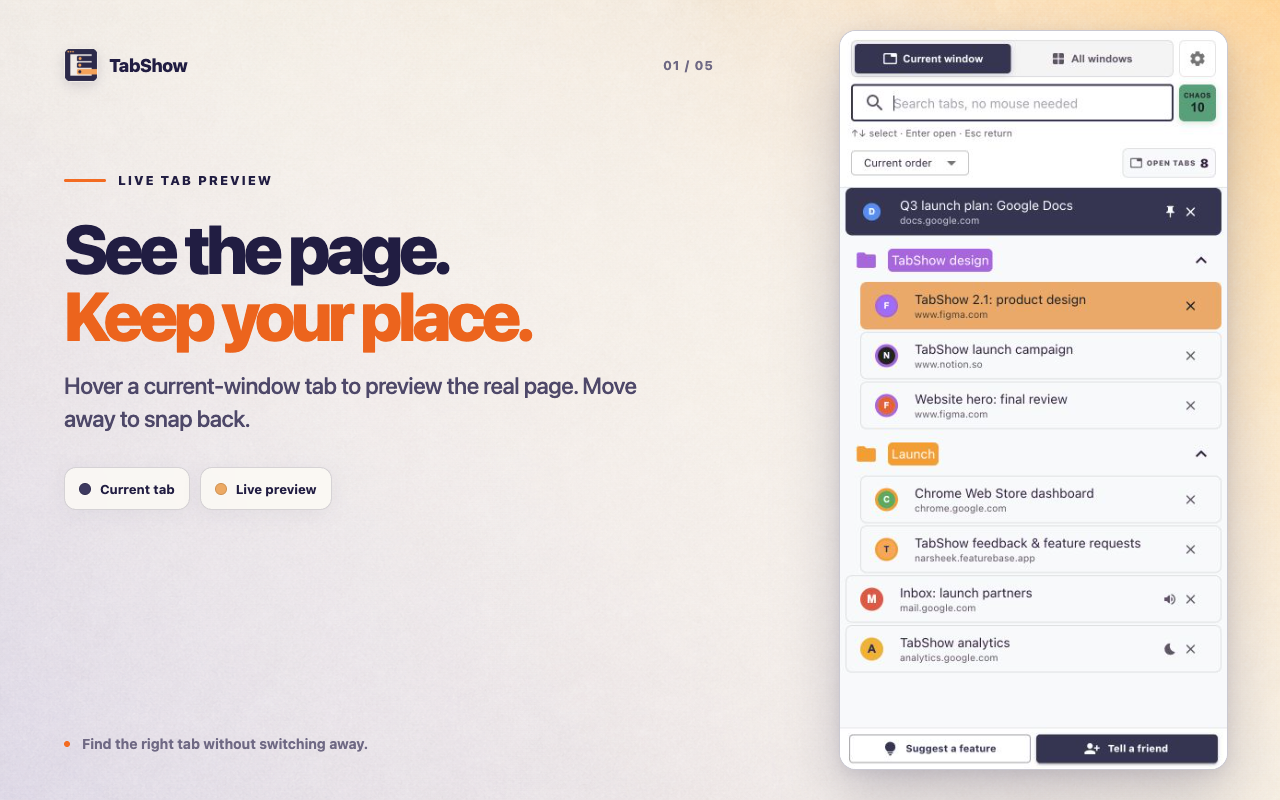
One interaction
Most tab tools ask you to organize more. TabShow helps at the exact moment a collapsed title or familiar favicon is no longer enough.
Preview the full page without losing your focus. With TabShow, hover a tab to see it live. Move away. Your original page comes back. Found the right page? Click to stay. Search by title or website. Use the arrow keys. Find tabs across windows in the same Chrome profile. It’s free. No account. No tracking. Find the right tab. Keep your flow.
TabShow
Search open tabs by title, URL, or domain instead of scanning the tab strip.
Search across windows in the same Chrome profile. Other profiles stay separate.
Keep browser order or sort by recent use, recent addition, domain, or group.
Arrow keys select, Enter opens, and Escape returns to your original tab. Hover when you want a live preview.
Honest positioning
TabShow keeps live tabs live. It does not close them into a list, save cloud sessions, or ask you to rebuild browsing around projects. If you need workspace sync or aggressive memory cleanup, another tool may fit better. If you need to identify the right live page quickly, that is TabShow’s job.
Explore live tab preview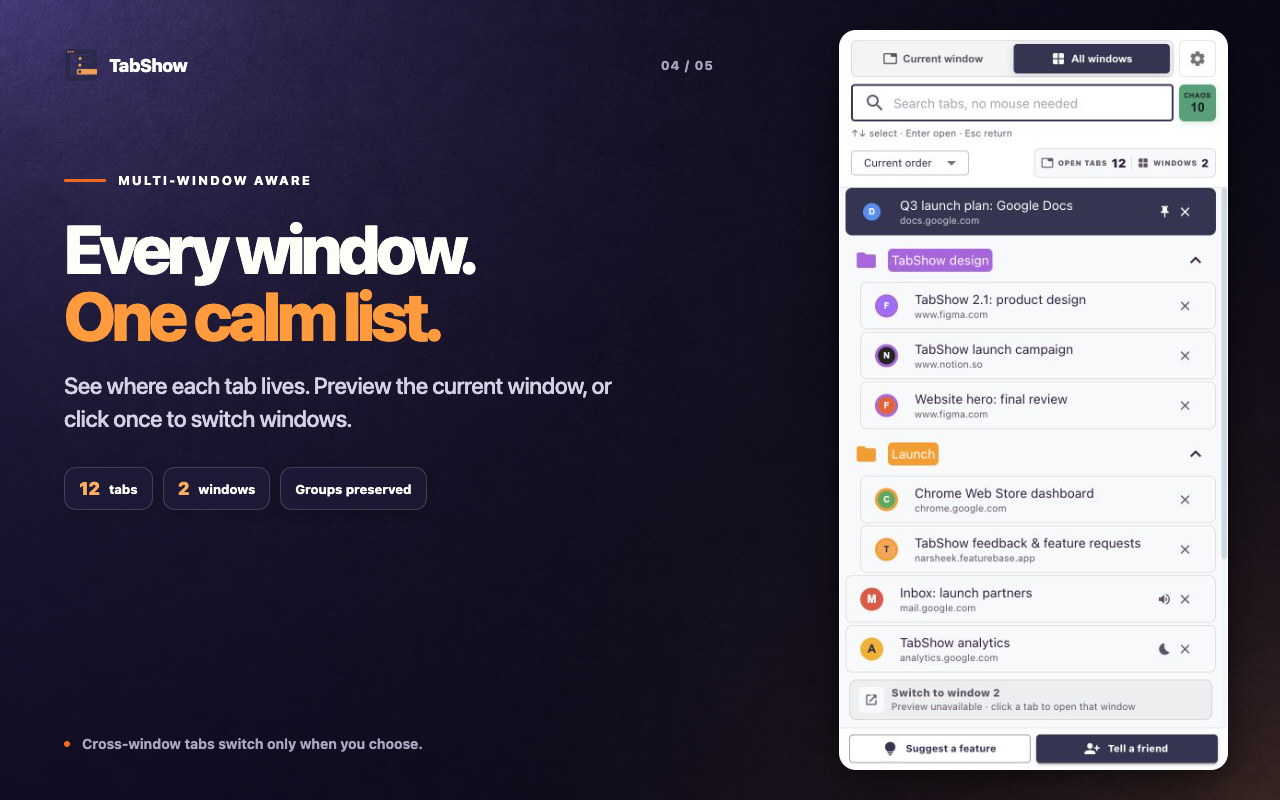
Privacy by design
TabShow has no account, backend, ads, or tracking. It does not request host permissions, so it cannot access the contents of the websites you visit.
Built in public
Suggest a feature, report a problem, comment, or upvote the ideas that would improve your tab workflow.
Clear answers
Yes. Every feature is free to use. If you would like to support its development, you can leave a tip through Buy Me a Coffee. Support is entirely optional.
No. TabShow does not request host permissions and cannot read page contents. It uses Chrome's tab metadata, such as titles, URLs, favicons, groups, and status, to power the side panel.
Yes. Choose All windows to search tabs across windows in the same Chrome profile. Windows in other profiles, such as separate Work and Personal profiles, stay separate. For safety, a tab in another window switches only when clicked; hover preview does not steal focus across windows.
TabShow returns you to the original tab. If the preview was the right page, click it to make the switch permanent.
Yes. Arrow keys select search results, Enter opens the selected tab, and Escape returns to the original tab. Hover a current-window result when you want a live preview. The side panel shortcut can be customized in Chrome's extension shortcut settings.
Ready when you are
Preview live Chrome tabs from the side panel, then switch only when you are sure.
Add to Chrome